Transfers Overview Guide
The Business Dashboard page (accessible from the left-hand navigation pane) currently contains only mock data and the related functionality is not available yet. It is planned to be added in a future version of the product.
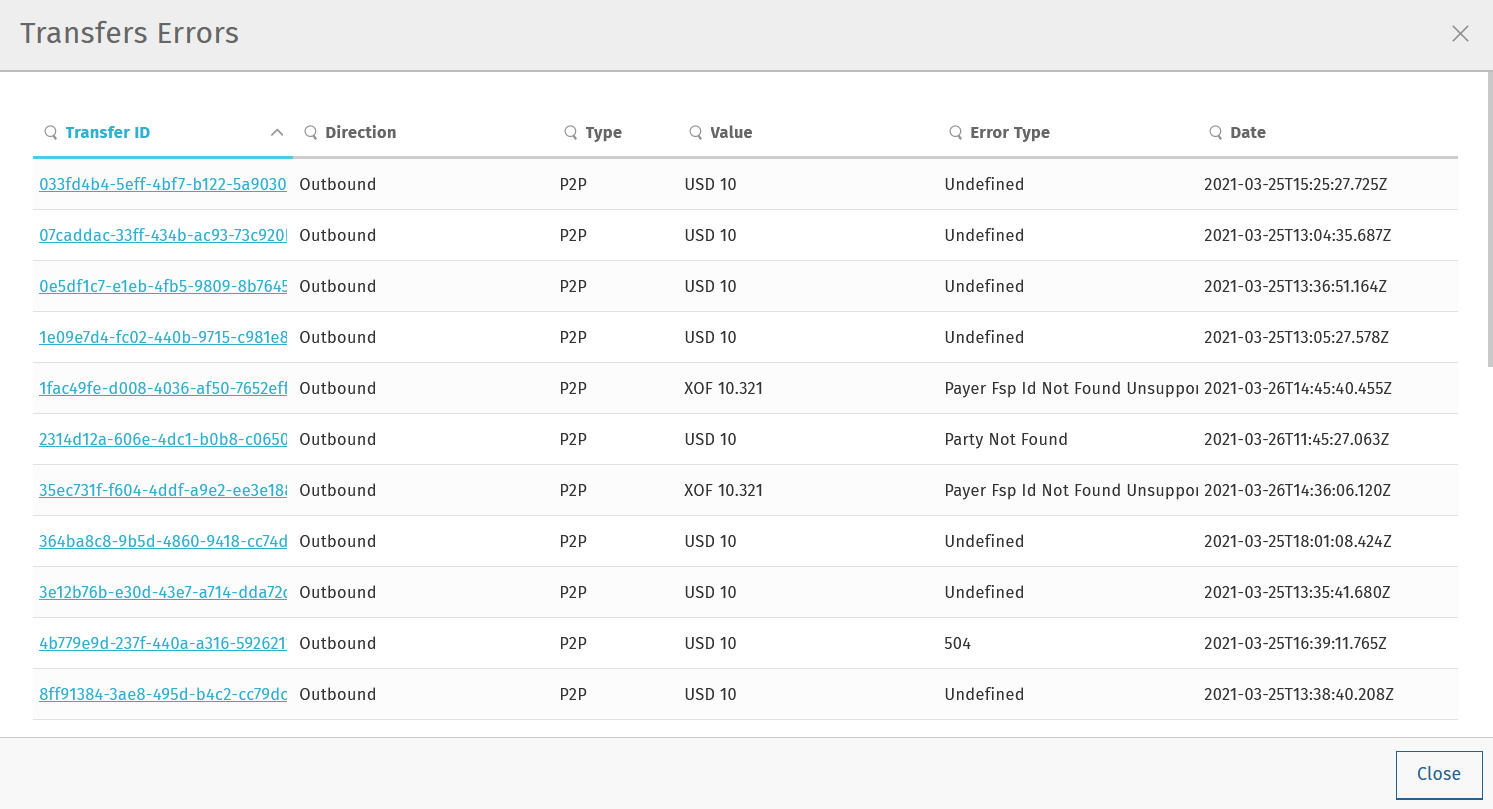
The Transfers Overview page provides visualization of transaction details and the ability to query and observe each transfer’s status.
Find a Transfer
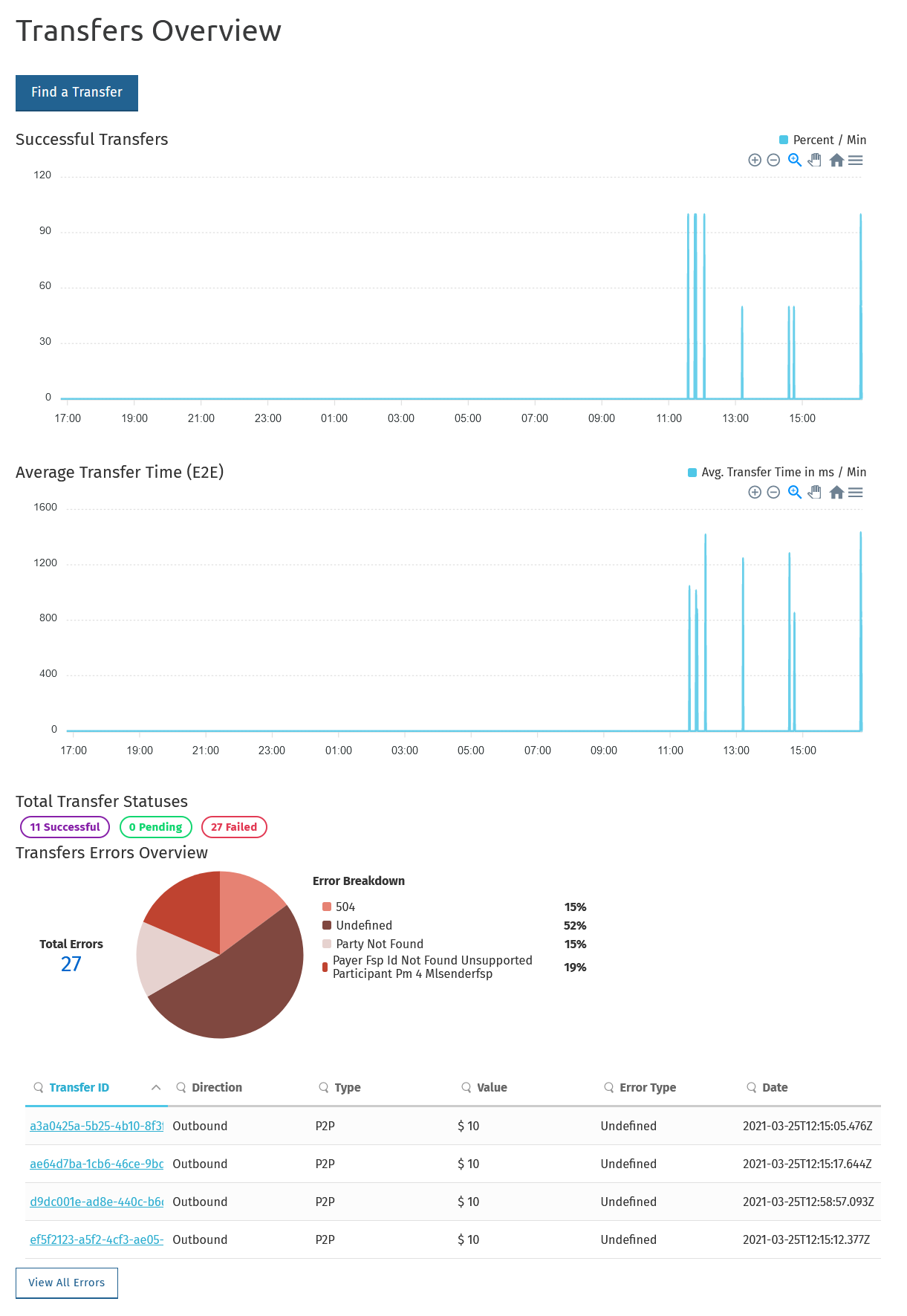
The Find a Transfer button  find a transfer button at the top of the page allows you to find a particular transfer.
On clicking the button, a window is displayed where you can:
- search for a transfer by its Transfer ID
- do advanced filtering using multiple search criteria (this is useful when you do not have a Transfer ID at your disposal)
Find a transfer based on its Transfer ID
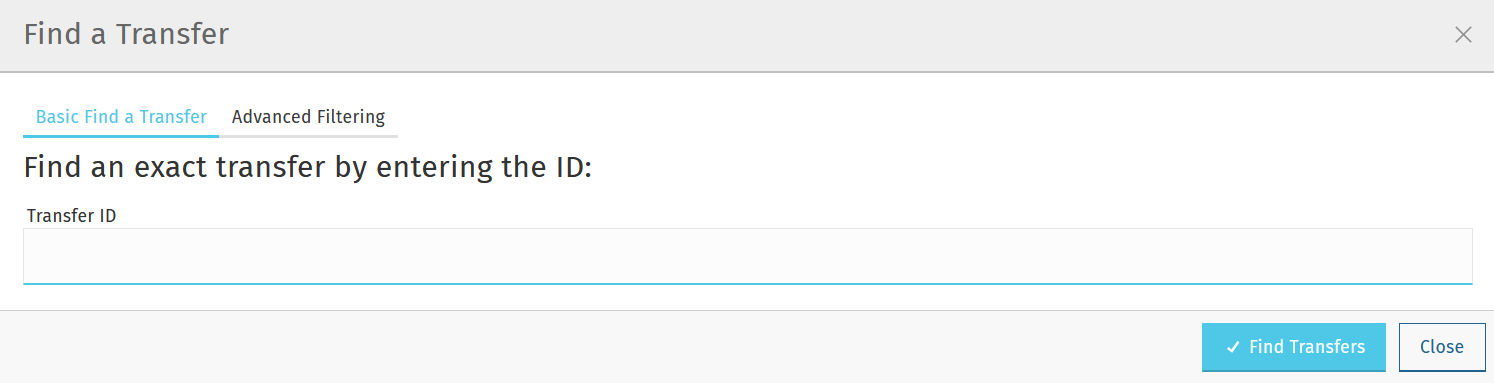
Use the Basic Find a Transfer tab to find a transfer based on its Transfer ID:
- Enter the transfer’s identifier in the Transfer ID field. Entering only a snippet of the full transfer ID string will also return a result.
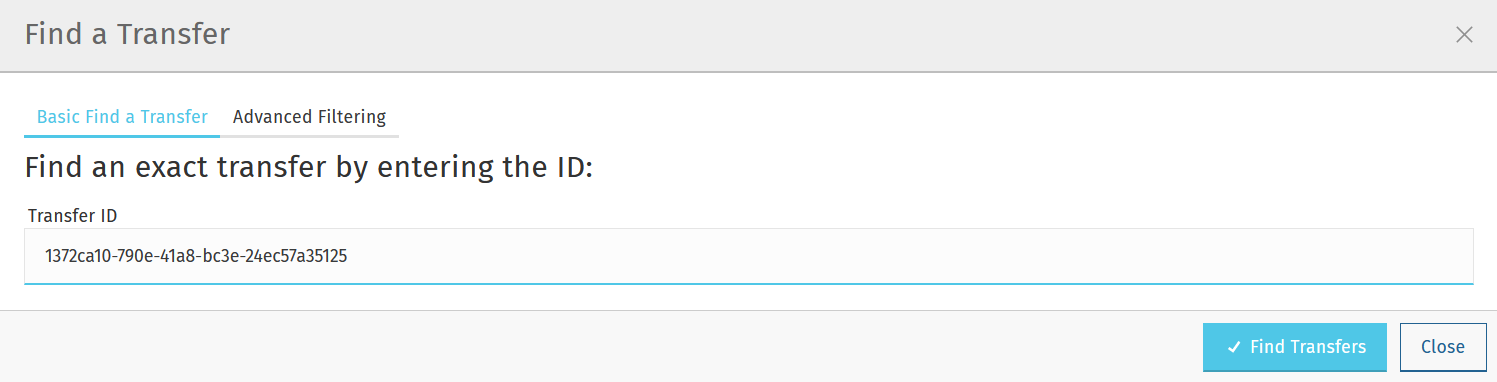
- Click the Find Transfers button.
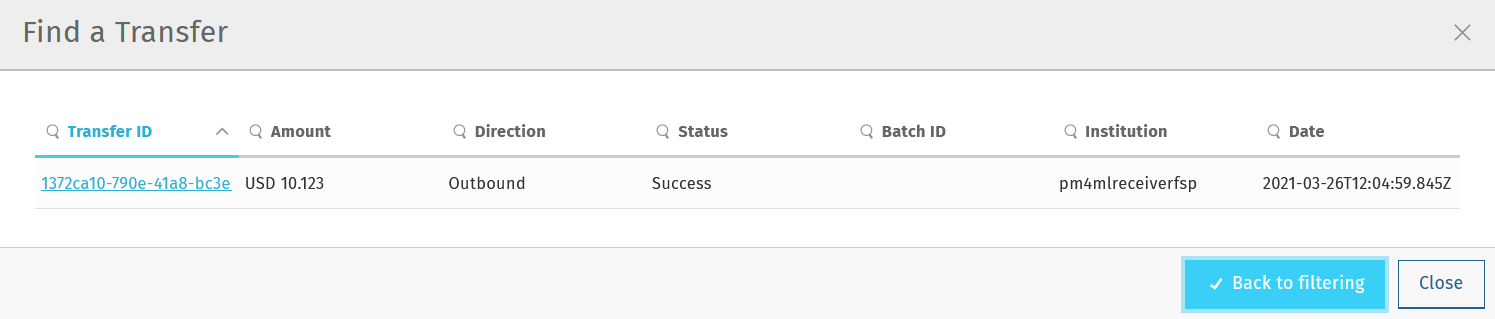
- To find out more information about the transfer, click the transfer item once. The Transfer Details window pops up showing detailed information about the transfer.
Transfer Details
The details of the transfer are available on the transfer details tab.
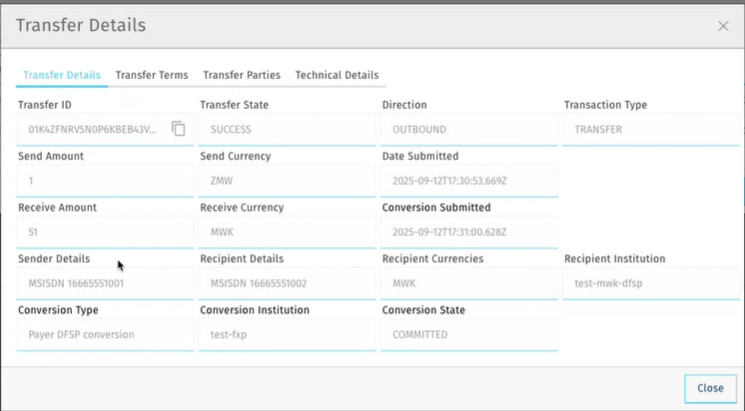
- Transfer ID: The unique identifier of the transfer (This is a ULID identifier for example, 01N42FNRVSNOPKKEBBIJV).
- Transfer State: Indicates the current state of the transfer. Possible values are:
- RECEIVED - Next ledger has received the transfer
- RESERVED - Next ledger has reserved the transfer
- COMMITTED - Next ledger has successfully performed the transfer
- ABORTED - Next ledger has aborted the transfer due to a rejection or failure to perform the transfer
- Direction: The direction of the transfer (OUTBOUND or INBOUND from the perspective of the DFSP inspecting the transfer).
- Transaction Type: The type of transaction being performed. Possible values are:
- DEPOSIT - Used for performing a Cash-In (deposit) transaction. In a normal scenario, electronic funds are transferred from a Business account to a Consumer account, and physical cash is given from the Consumer to the Business User
- WITHDRAWAL - Used for performing a Cash-Out (withdrawal) transaction. In a normal scenario, electronic funds are transferred from a Consumer's account to a Business account, and physical cash is given from the Business User to the Consumer
- TRANSFER - Used for performing a P2P (Peer to Peer, or Consumer to Consumer) transaction
- PAYMENT - Usually used for performing a transaction from a Consumer to a Merchant or Organization, but could also be for a B2B (Business to Business) payment. The transaction could be online for a purchase in an Internet store, in a physical store where both the Consumer and Business User are present, a bill payment, a donation, and so on
- REFUND - Used for performing a refund of transaction
- Send Amount: The amount being sent in the original currency.
- Send Currency: The currency of the amount being sent (for example, ZMW).
- Date Submitted: The date and time when the transfer was initiated (for example, 2025-09-12T17:30:52.669Z).
- Receive Amount: The amount that will be received after conversion.
- Receive Currency: The currency of the amount being received (for example, MWK).
- Conversion Submitted: The date and time when the currency conversion was submitted.
- Sender Details: The unique identifier of the payer (for example, MSISDN 1666555100).
- Recipient Details: The unique identifier of the payee (for example, MSISDN 1666555100).
- Recipient Currencies: The supported currencies for the recipient (for example, MWK).
- Recipient Institution: The identifier of the DFSP serving the payee (for example, test-mwk-dfsp).
- Conversion Type: The type of conversion being performed (for example, Payer DFSP conversion).
- Conversion Institution: The institution handling the conversion (for example, test-fxp).
- Conversion State: The current state of the conversion process (for example, COMMITTED).
Transfer Terms
The Transfer Terms tab displays the financial terms and conditions agreed upon for the transfer, including both transfer terms and conversion terms (when applicable).
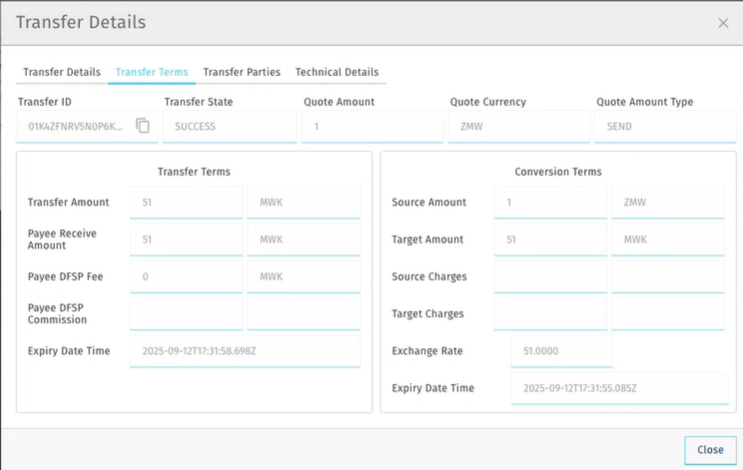
- Transfer Amount: The obligations amount to be transferred between participant (I.e. clearing amount).
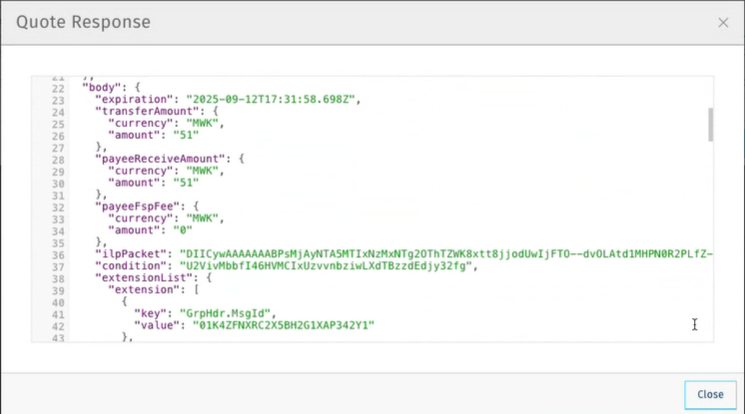
- Payee Receive Amount: The amount the payee will receive after fees (for example, 51 MWK).
- Payee DFSP Fee: The fee charged by the payee's DFSP these fees have already been included in the transfer amount.
- Payee DFSP Commission: Any commission applied by the payee's DFSP. This will have already been included in the transfer amount.
- Expiry Date Time: The expiration date and time for the transfer terms (for example, 2025-09-12T17:31:58.696Z).
Conversion Terms (when currency conversion is involved):
- Source Amount: The amount in the source currency. This is a clearing amount and already includes fees.
- Target Amount: The equivalent amount in the target currency. This is a clearing amount and already includes fees.
- Source Charges: Any charges applied to the source currency amount. This is an information field as it is already included in the source amount.
- Target Charges: Any charges applied to the target currency amount. This is an information field as it is already included in the target amount.
- Exchange Rate: The exchange rate used for the conversion (for example, 51.0000). This is an optional information field.
- Expiry Date Time: The expiration date and time for the conversion terms (for example, 2025-09-12T17:31:55.085Z).
Transfer Parties
The Transfer Parties tab displays detailed information about both the payer and payee involved in the transfer.
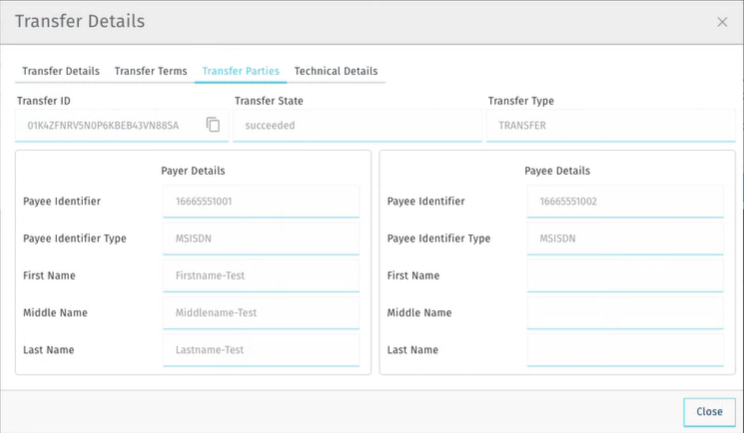
Payer Details:
- Payee Identifier: The unique identifier of the payer (for example, 1666555100).
- Payee Identifier Type: The type of identifier used for the payer (for example, MSISDN).
- First Name: The first name of the payer (for example, Firstname-Test).
- Middle Name: The middle name of the payer (for example, Middlename-Test).
- Last Name: The last name of the payer (for example, Lastname-Test).
Payee Details:
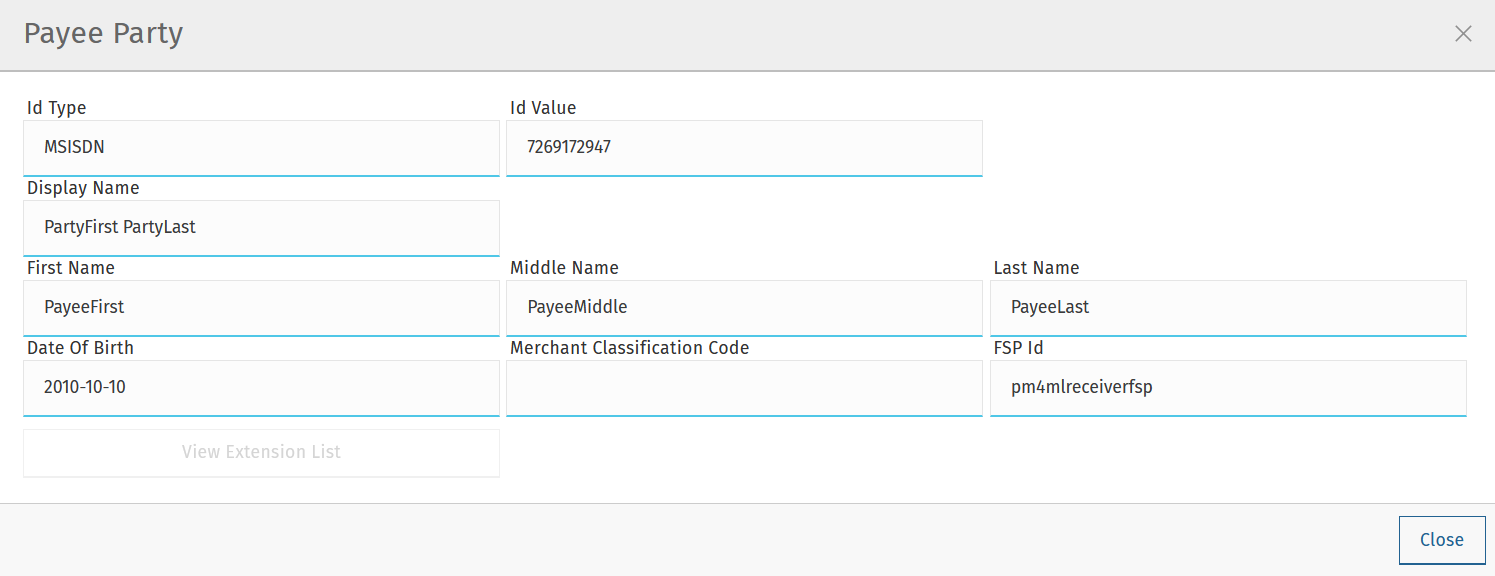
- Payee Identifier: The unique identifier of the payee (for example, 1666555100).
- Payee Identifier Type: The type of identifier used for the payee (for example, MSISDN).
- First Name: The first name of the payee.
- Middle Name: The middle name of the payee.
- Last Name: The last name of the payee.
Transfer Technical Details
The Technical Details tab provides low-level technical information about the transfer, including various system identifiers and access to detailed message sequences.
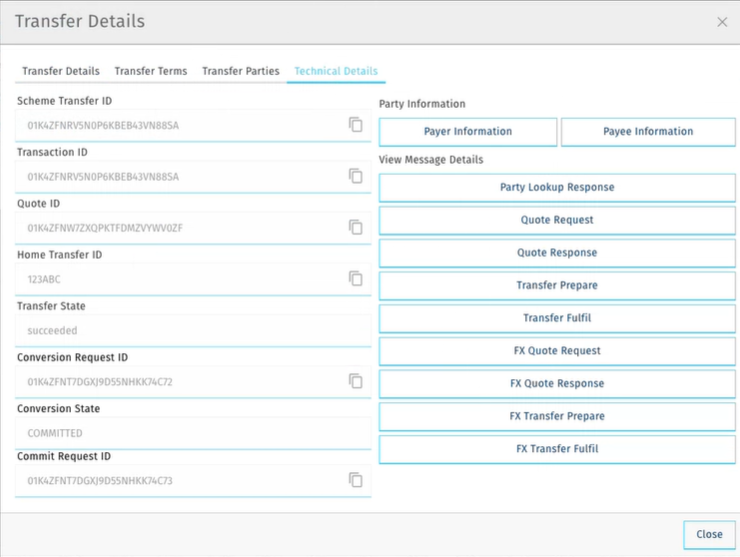
Technical Identifiers:
- Scheme Transfer ID: The unique identifier used within the scheme for this transfer (for example, 01N42FNRVSNOPKKEBBIJNBSSA).
- Transaction ID: The unique transaction identifier (for example, 01N42FNRVSNOPKKEBBIJNBSSA).
- Quote ID: The unique identifier for the quote associated with this transfer (for example, 01N42FNW72XOPKTF0M2YWWOZE).
- Home Transfer ID: The internal transfer identifier used by the home institution (for example, 12345).
- Transfer State: The current state of the transfer (for example, succeeded).
- Conversion Request ID: The unique identifier for the currency conversion request (for example, 01N42FNT7DGX9DSSNHKK74C72).
- Conversion State: The current state of the conversion process. Possible values are:
- RECEIVED - Next ledger has received the conversion
- RESERVED - Next ledger has reserved the conversion
- COMMITTED - Next ledger has successfully performed the conversion
- ABORTED - Next ledger has aborted the conversion due to a rejection or failure to perform the conversion
- Commit Request ID: The unique identifier for the commit request (for example, 01N42FNT7DGX9DSSNHKK74C73).
Party Information: The tab provides buttons to view detailed party information:
- Payer Information: Displays detailed information about the payer party.
- Payee Information: Displays detailed information about the payee party.
View Message Details: The tab provides access to view the actual API messages exchanged during the transfer process:
- Party Lookup Response: View the API response for party lookup requests.
- Quote Request: View the quote request message sent to request pricing terms.
- Quote Response: View the quote response message containing the pricing terms.
- Transfer Prepare: View the transfer preparation request message.
- Transfer Fulfil: View the transfer fulfillment response message.
- FX Quote Request: View the foreign exchange quote request (when applicable).
- FX Quote Response: View the foreign exchange quote response (when applicable).
- FX Transfer Prepare: View the FX transfer preparation request (when applicable).
- FX Transfer Fulfil: View the FX transfer fulfillment response (when applicable).
Find a transfer using multiple search criteria
Use the Advanced Filtering tab to find a transfer when you do not know its Transfer ID. You can search for a transfer based on:
- the approximate time when the transfer occurred
- the institution (DFSP) that was involved in the transfer
- the status of the transfer
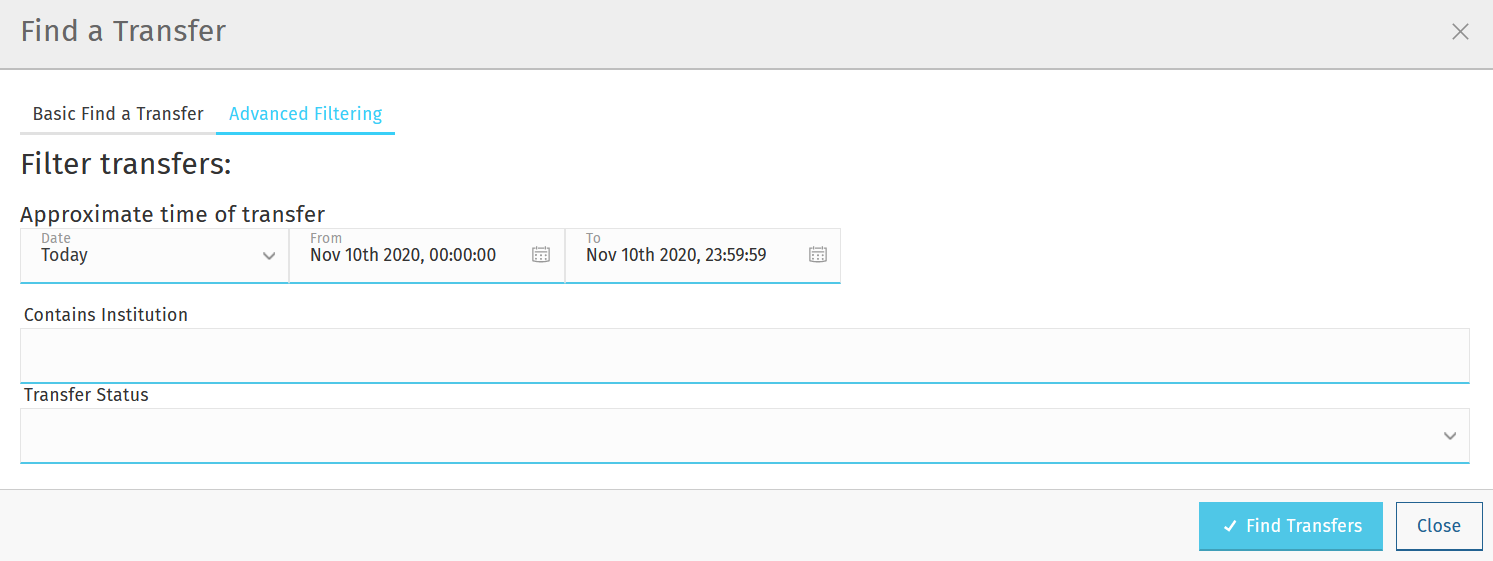
To find a transfer:
- Use the date picker fields to specify the time period in which the transfer happened. Note that the time of the transfer is the time in your timezone.
- In the Contains Institution field, enter the fspId of the DFSP that participated in the transfer.
- In the Transfer Status field, select the appropriate value (Success, Pending, Error) from the drop-down list.
- Click the Find Transfers button. A list of transfers that match your search criteria is displayed.
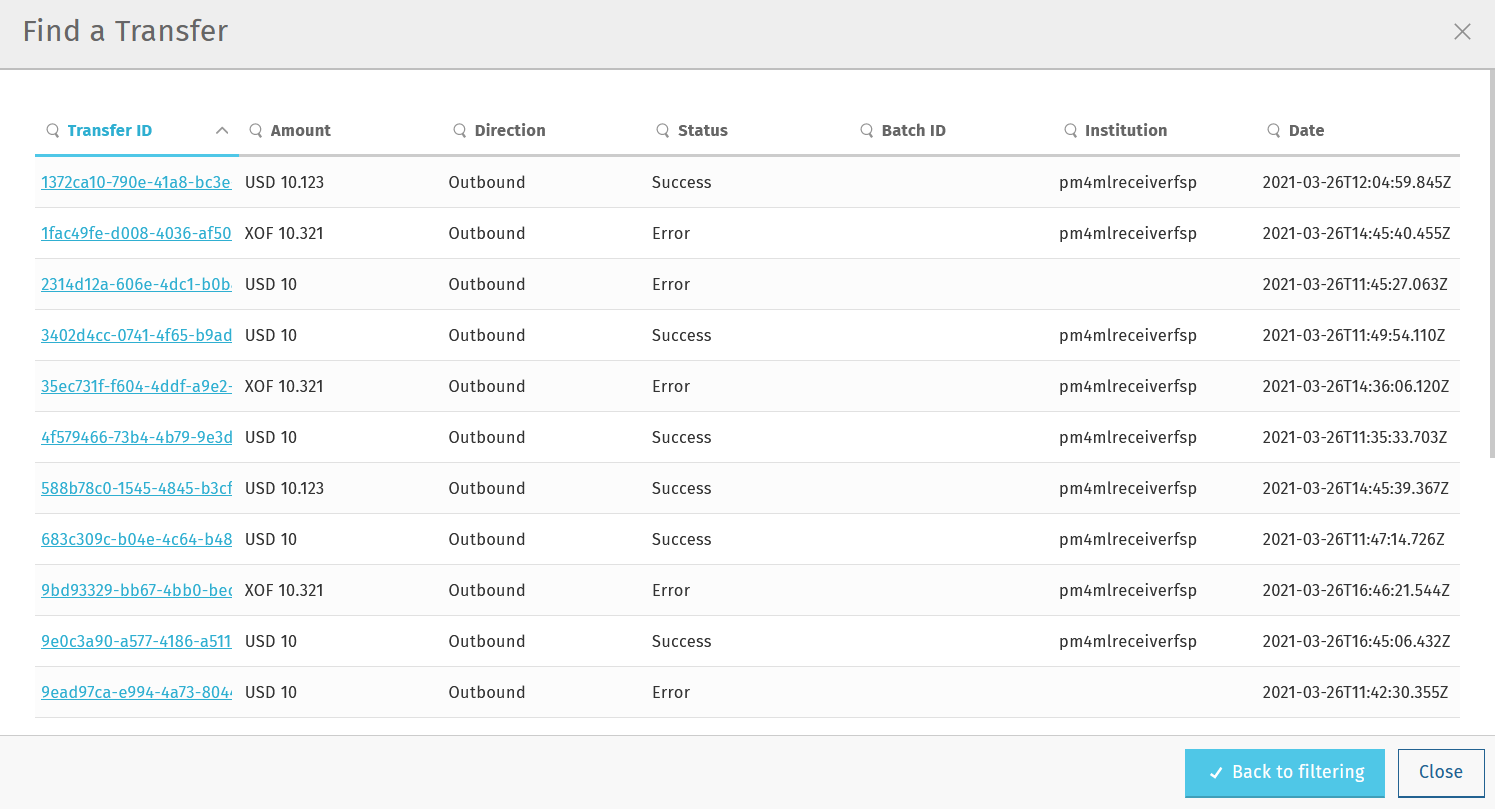
- Click an entry in the search results to view details of that particular transfer. The Transfer Details window pops up, which displays:
- A Basic Information tab with details, such as transfer amount, sender, recipient, and so on.
- A Technical Details tab with low-level technical details, such as the actual party lookup, quote, or transfer messages. This is useful for technical personnel performing a debug.
For further information on the details that the Transfer Details pop-up window provides, see the descriptions and screenshots in Find a transfer based on its Transfer ID.
Successful Transfers
The Successful Transfers graph is showing a timeline of the past 24 hours and displays the percentage of successful transfers per minute. The time zone of the timeline is UTC.
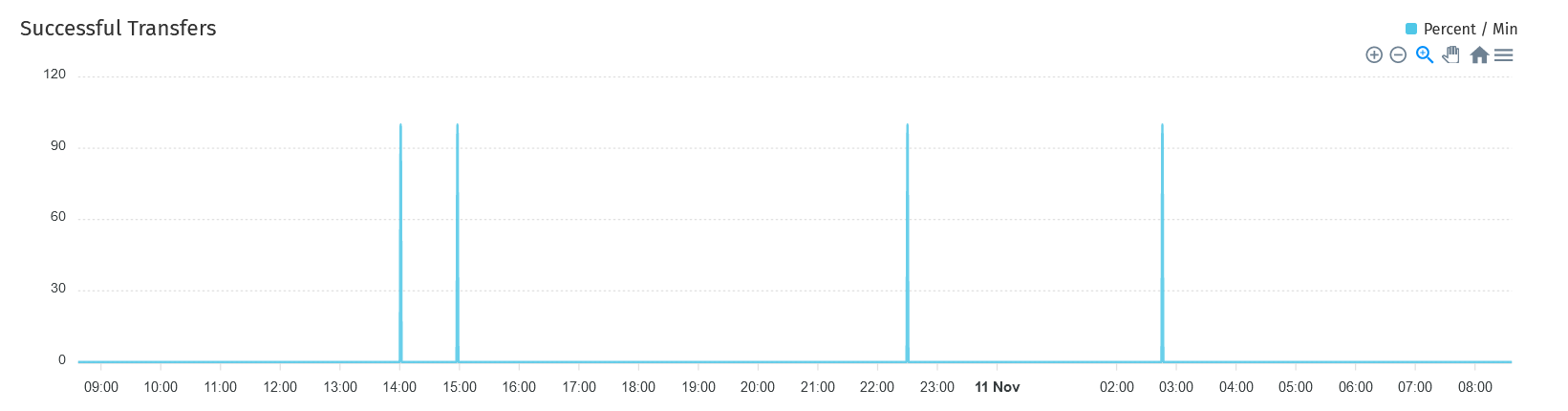
The granularity of the graph is customizable. For example, you can zoom in on areas of interest and find out the timestamps of transfers that seem not to have been successful.
To be able to zoom, you must be in selection zoom mode. Ensure you have the Selection Zoom button  selected. This is the default setting.
Click the Zoom In or Zoom Out buttons  to zoom in or out. To zoom in on a particular area of the graph, select an area by clicking the graph, drag the mouse left or right, and release the mouse.
Click the Reset Zoom button  to reset the timeline to the original 24-hour granularity.
Another way to change the displayed range of the timeline is to pan an area. Click the Panning button  , then click the timeline and drag your mouse to the left or right. Panning keeps the selected zoom granularity and lets you move along the X (time) axis.
To return to selection zoom mode, click the Selection Zoom button .
To download a chart in .svg, .png, or .csv format, click the Menu button  .
.
Average Transfer Time (E2E)
The Average Transfer Time (E2E) graph is showing your transfer latency with the Hub.
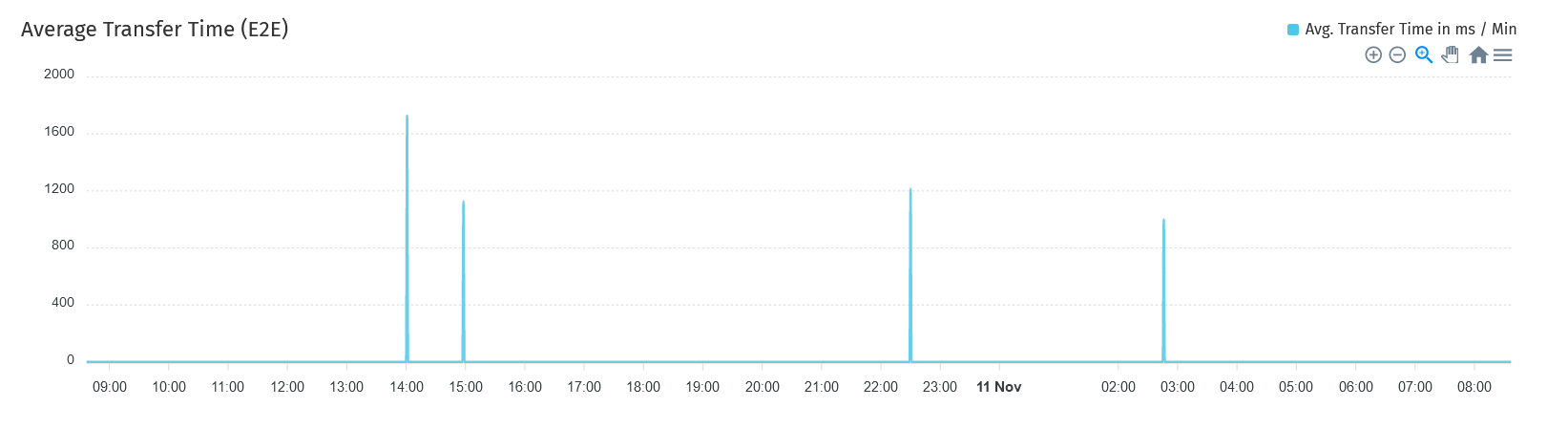
You can zoom in on particular areas if you spot an anomaly. This is useful when debugging issues.
Total Transfer Statuses
The Total Transfer Statuses widgets display the total number of successful, pending, and failed transfers.

Transfers Errors Overview
The Transfers Errors Overview pie chart shows a breakdown of the types of errors that caused failed transfers.
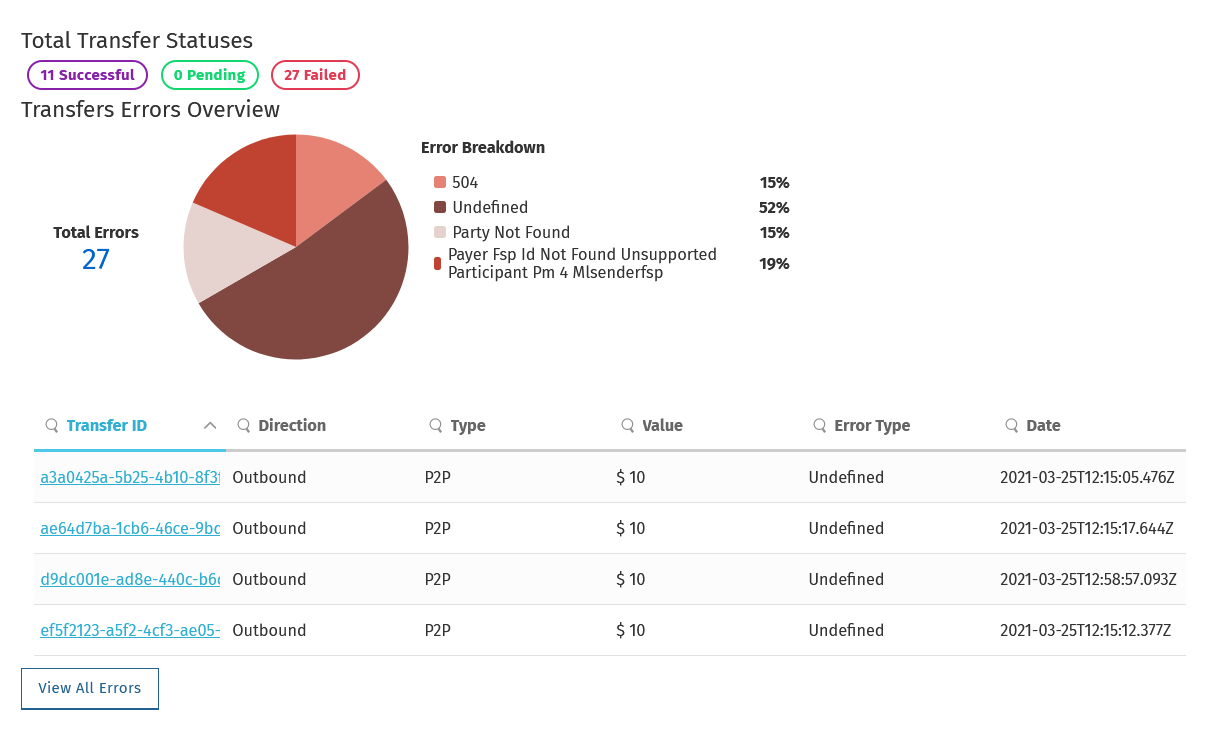
The table below the pie chart lists failed transfers. If there are more than four errors, then a View All Errors button is displayed, which allows you to check the full list of errors. To get the complete list of errors, click the View All Errors button. The Transfers Errors window pops up.