Technical Dashboard
The Technical Dashboard page provides visualisation of system metrics and the ability to observe trends in system behaviour.
Having easy access to these metrics means that technical operational control becomes proactive as potential problems can be picked up before they become real system problems. Use these metrics to fine-tune the system to ensure the best operational efficiency.
Connection Health Status
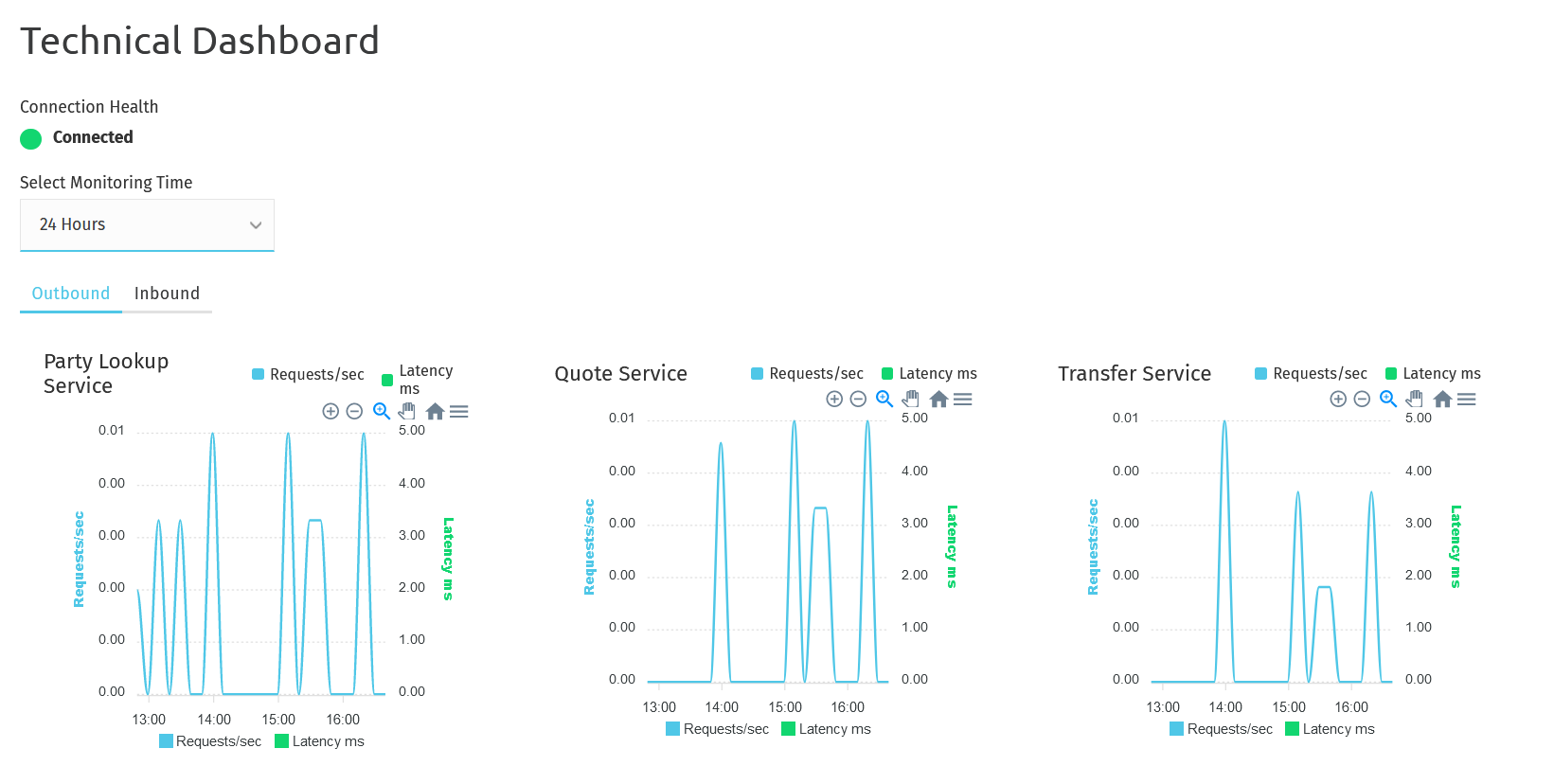
The DRPP connection status shows the real-time status of the security onboarding and exchange with the DRPP platform.
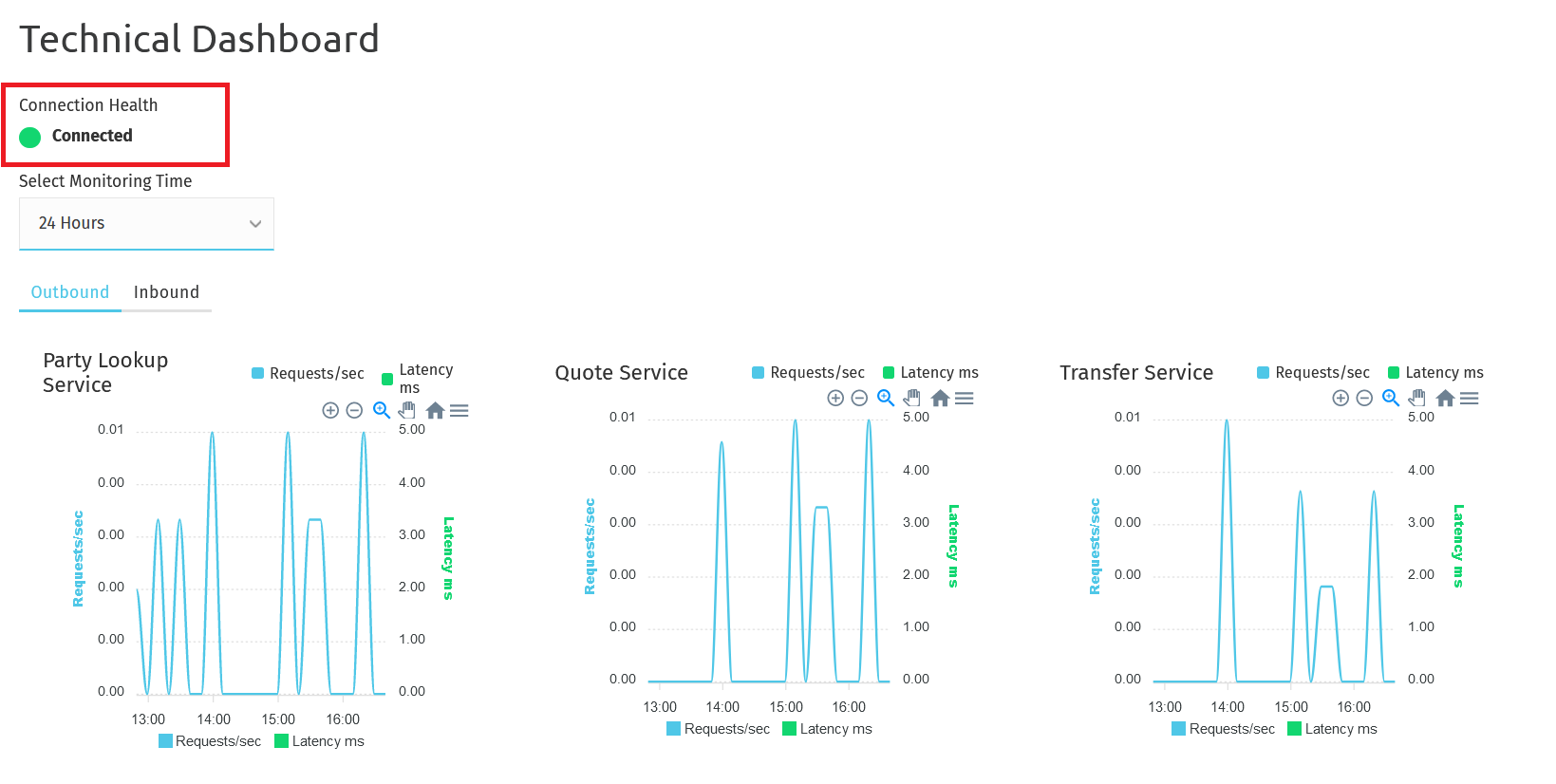
Connection Health Status: Displays the overall connection state with a green "Connected" indicator showing successful connectivity to the DRPP platform. If you expand the view the connection health details become visible.
Connection Health Action Buttons

The action buttons enable users to perform administrative operations on certificates and connectivity settings. These include:
- Recreate Outbound TLS: Allows regeneration of outbound TLS certificates for secure communication.
- Recreate JWS: Enables recreation of JSON Web Signature (JWS) certificates for message authentication.
- Reonboard: Initiates a complete re-onboarding process with the DRPP platform.
Component Status Details
The dashboard displays the real-time status of critical security and connectivity components that are automatically maintained by Payment Manager. These details empower users to actively monitor and identify potential issues in the security onboarding process, enabling proactive troubleshooting when necessary.
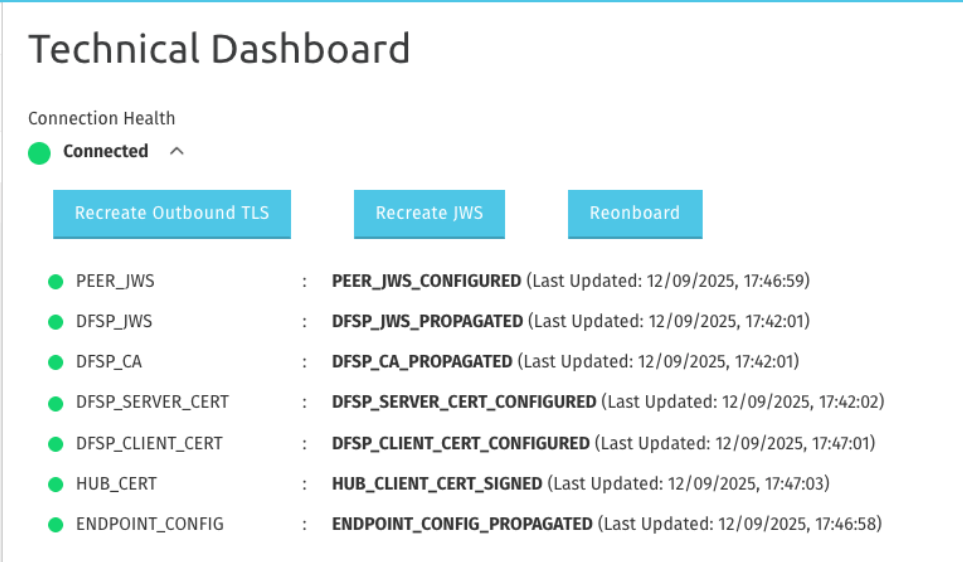
Each component represents a specific aspect of the automated security infrastructure:
- PEER_JWS: Peer public JSON Web Signature certificates have been retrieved for source authentication and tamper detection
- DFSP_JWS: Own public JSON Web Signature certificates have been uploaded for distribution to other peers
- DFSP_CA: DFSP Certificate Authority certificates for establishing trust relationships
- DFSP_SERVER_CERT: DFSP server certificates for secure TLS communication, forming part of the mutual TLS connection
- DFSP_CLIENT_CERT: DFSP client certificates for authenticated outbound connections, forming part of the mutual TLS connection
- HUB_CERT: Hub client certificates for trusted communication with the DRPP platform
- ENDPOINT_CONFIG: Network endpoint configuration for proper routing and connectivity
Each component shows a green status indicator, timestamp of last update, and current configuration state, providing comprehensive visibility into the security infrastructure health.
Service graphs
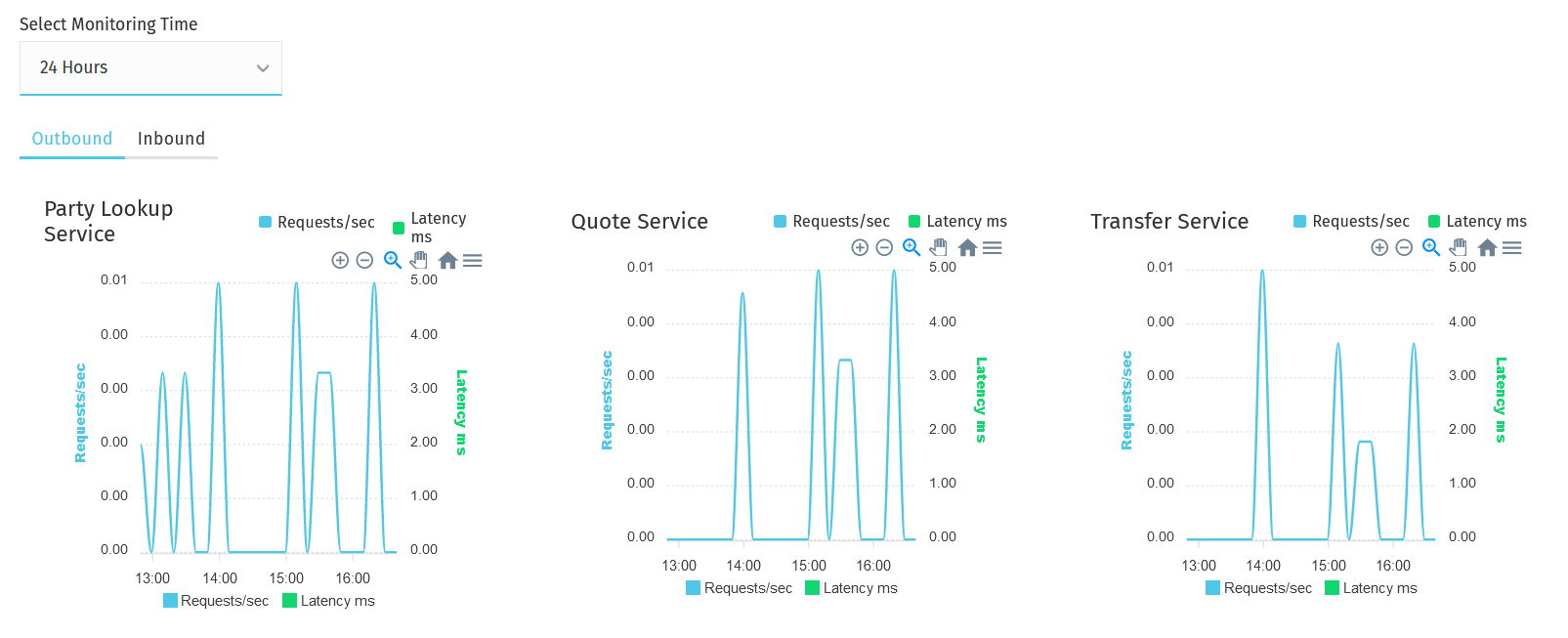
The graphs of the various services (party lookup, quotes, transfers) display visual information about the following:
service rate over a selected period of time > shown as Requests/sec on the graph
The Requests/sec line shows the per-second rate of requests over the past 24 hours or any other time period specified in the Select Monitoring Time drop-down field. Data is captured, and the average "rate of requests" is worked out at every 10-minute mark. Those averages are then aggregated for the specified time period.
service average response time over a selected period of time > shown as Latency ms on the graph
Latency ms values are calculated by looking at service requests and inspecting what latency range they fall in (for example, 10-500ms, 500-1000ms — these are just examples for illustration purposes). For each request, a counter corresponding to the range that the request fell in is incremented. The average latency is worked out at every 10-minute mark based on "latency ranges" and their counters. Those averages are then aggregated for the time period specified in the Select Monitoring Time drop-down field.
The y axis range is calculated based on the data in the result set. It adjusts to give a sensible minimum/maximum. First, specify the period of time that you want to examine. Choose a time period from the Select Monitoring Time drop-down field.
Then, click the Outbound or Inbound tab depending on whether you want to look at the data of outgoing or incoming transactions.
Look at the graph of the service that you are interested in.
The granularity of the graph is customizable. For example, you can zoom in on areas of interest and find out the timestamps of requests that seem not to have been successful.
To be able to zoom, you must be in selection zoom mode. Ensure you have the Selection Zoom button  selection zoom button selected. This is the default setting.
Click the Zoom In or Zoom Out buttons  zoom in zoom out to zoom in or out. To zoom in on a particular area of the graph, select an area by clicking the graph, drag the mouse left or right, and release the mouse.
Click the Reset Zoom button  house button to reset the timeline to the original 24-hour granularity.
Another way to change the displayed range of the timeline is to pan an area. Click the Panning button  panning button, then click the timeline and drag your mouse to the left or right. Panning keeps the selected zoom granularity and lets you move along the X (time) axis.
To return to selection zoom mode, click the Selection Zoom button selection zoom button.
To download a chart in .svg or .png format, click the Menu button  menu button.